- Download and install 1.5 or later version
- If 1.5 or later version is already installed (it means this installed jdk is not default one) in your machine, then you can write it's path on Eclipse shortcut like that: Eclipse installed path + jdk installed path.
Showing posts with label English. Show all posts
2013-03-26
Solution of Eclipse error: "JVM is not suitable for this product. Version: 1.5 or greater is required."
2013-03-22
How to set encoding in Eclipse
When we using Eclipse to write program if you use language which is other than english, let's say using mongolian to write comment, later it becomes unreadable. Forexample write something in Mongolian, before saving it:
After saving, if you open that file:
In this situation in Eclipse, choose from "References" highlighted menu "Windows", then make changes like following picture.
Nature of this problem is this: If you save any file, it will be saved by using encoding ANSI and ANSI only support english language and some other characters. So if we write mongolian characters, then it can't recognize all of them. But if you change encoding to UTF-8, it recognizes mongolian characters because this encoding includes them and saves them all correctly.
2013-01-24
Making localization by using poEdit (WordPress)
When you need to translate "Open Source" program, you'll need special tool. Forexample: if you want to translate blog tool WordPress to your native language.
If you want to translate it, you'll need following qualificatins:
- You need to be truly bilingual -- fluent in both written English and the language(s) you will be translating into. Casual knowledge of either one will make translating difficult for you, or make the localization you create confusing to native speakers.
- You need to be familiar with PHP, as you will sometimes need to read through the WordPress code to figure out the best way to translate messages.
- You should be familiar with human language constructs: nouns, verbs, articles, etc., different types of each, and be able to identify variations of their contexts in English.
- POT (Portable Object Template) files
- The first step in the localization process is that a program is used to search through the WordPress source code and pick out every message passed into a __() or _e() function. This list of English-language messages is put into a specially-formatted template file (POT file) that forms the basis of all translations. Generally, you can download a POT file for WordPress, so you shouldn't have to generate your own. Separate POT files can also be made for themes and plugins, if the theme/plugin developer has enclosed all text in __() or _e() functions.
- PO (Portable Object) files
- The second step in the localization process is that the translator translates all the messages from the POT file into the target language, and saves both English and translated messages in a PO file.
- MO (Machine Object) files
- The final step in the localization process is that the PO file is run through a program that turns it into an optimized machine-readable binary file (MO file). Compiling the translations to machine code makes the localized program much faster in retrieving the translations while it is running.
An open source program for Windows, Mac OS X and UNIX/Linux which provides an easy-to-use GUI for editing PO files and generate MO files.
Translating With poEdit (Let me remind you our chosen example is WordPress.)
- Download and install poEdit. Download!
- Download the official WordPress POT file.
- Open the file in poEdit.
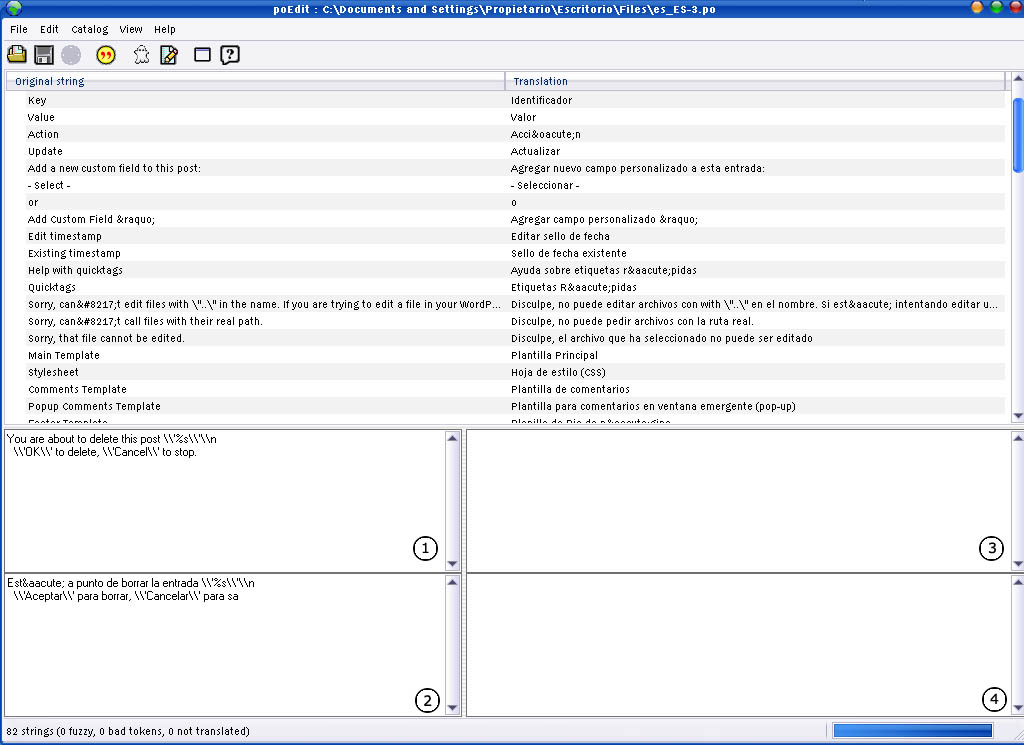
- (See Image) The box labeled (1) is the original message (in English) from the POT file. The box labeled (2) is where you add your translation. Boxes labeled (3) and (4) are used for adding comments about the messages. These come in handy if you are working with a team of translators and would like to pass around ideas through the PO file.
- Go to File → Save as… to save your translations in a PO file.
- When you are finished translating, go to File → Save as… again to generate the MO file.
- Or you can set your poEdit to always compile a MO file when saving changes by clicking File → Preferences and on the Editor tab check the Automatically compile .mo file on save box.
2013-01-11
Useful Open Source Multimedia Softwares
Today Open Source (OS) software is becoming more competitive than ever. If you can't buy multimedia programs like: Photoshop, BSR Screen Recorder, Soundforge and many more, then just use OS counterparts (of course if you can buy it, then you it's up to you). Please don't use them illegally (I mean cracks and keys). So here is my suggestion:
For more information: http://www.getpaint.net/features.html
For more information: http://camstudio.org/
For more information: http://audacity.sourceforge.net/about/
paint.net (picture editing program)
Download: http://www.getpaint.net/download.htmlFor more information: http://www.getpaint.net/features.html
CamStudio (screen capturing program)
Download: CamStudioFor more information: http://camstudio.org/
Audacity (audio editing program)
Download: http://audacity.sourceforge.net/download/For more information: http://audacity.sourceforge.net/about/
2012-12-03
How to write in Mongolian (Cyrillic) on Mac OS X?
If you want to write in Mongolian (Cyrillic) on Mac, then you should do following things:
- Download Mongolian Keyboard layout here.
- Next, copy the file to following folder: MacintoshHD/Users/(pick yourself)/Library/KeyboardLayouts.
- Then go to System preferences -> Language & Text -> Input Sources and check MongolianCYR option.
- Now let's write in Mongolian on Mac OS X.
Subscribe to:
Posts (Atom)